This guide walks you through creating tracking links in AppsFlyer and using them in the AppGrade DSP, from partner activation to postback configuration.
Note: AppGrade is already registered in the AppsFlyer partner catalog as an integrated partner and is available for selection.
¶ Step 1: Enable AppGrade in AppsFlyer
¶ Find the partner
-
Sign in to AppsFlyer and select your app.
-
In the sidebar, go to Collaborate → Partner Integrations (or Collaboration → Active Integrations).
-
In the search box, type AppGrade. Look for the green-and-black icon with the AG initials.
Screenshot: the AppGrade partner card in the AppsFlyer integrations catalog.
-
Click the partner to open its page.
¶ Activate the partner
-
On the partner page, toggle Activate Partner to ON.
Screenshot: the "Activate Partner" toggle switched on.
-
Fill in any required fields under General Settings (if present).
-
Click Save.
Important: The Activate Partner toggle must remain ON for the entire time you run campaigns with the DSP. If it is turned off, attribution stops working.
¶ Step 2: Create the attribution link in AppsFlyer
¶ Choose the link type
-
On the AppGrade DSP partner page, open the Attribution Link tab.
-
Select a link type:
- OneLink (recommended) — a universal link for both iOS and Android.
- Single-platform link — for one platform only.
¶ Configure attribution link parameters
You can add parameters directly in the AppsFlyer UI. The table below maps each AppsFlyer parameter to the corresponding AppGrade DSP macro.
Screenshot: the AppsFlyer attribution link builder with parameters added.
| AppsFlyer parameter | DSP macro | Description | Required |
|---|---|---|---|
pid=appgradecf_int |
Fixed | Media Source — the AppGrade DSP ID in the AppsFlyer catalog. Filled in automatically when the partner is selected | Required |
clickid |
{click_id} |
Unique click ID. The DSP generates an ID for every click/impression. Used to match the postback back to the campaign | Required |
c |
{campaign_name} |
DSP campaign name. Shown in AppsFlyer reports at the Campaign drill-down level | Recommended |
af_c_id |
{campaign_id} |
DSP campaign ID. A stable identifier (the name can change, the ID does not) | Recommended |
af_ad |
{af_ad} |
Creative name. Shown in reports at the Ad drill-down level | Recommended |
af_ad_id |
{af_ad_id} |
DSP creative ID. A stable identifier for per-creative analytics | Recommended |
af_ad_type |
{af_ad_type} |
Creative type: Banner, Video, Native, Playable. Lets you filter by format | Optional |
af_siteid |
{app_id} |
Bundle ID of the app where the creative was shown/clicked (the publisher placement) | Recommended |
ad_app |
{ad_app} |
Bundle ID of the advertised app | Optional |
ssp_id |
{ssp_id} |
ID of the SSP/exchange the impression or click passed through | Recommended |
af_click_lookback=7d |
Fixed | Click attribution window — 7 days. Installs within this period after a click are attributed to AppGrade DSP | Recommended |
af_prt=company |
Fixed | Agency/intermediary company. Set this if you work through an agency | Optional |
¶ Attribution settings
| Setting | Recommended value | Description |
|---|---|---|
| Click Lookback Window | 7 days (default) | Click attribution window (1–30 days) |
| View-Through Lookback | 24 hours (default) | Impression attribution window (1–24 hours) |
| Fingerprint | Enabled | Probabilistic attribution when no Device ID is available |
Screenshot: the AppsFlyer attribution window and fingerprint settings.
¶ Ready-to-use link templates
¶ Click URL — recommended template
https://app.appsflyer.com/APP_BUNDLE_ID?pid=appgradecf_int&af_siteid={app_id}&c={campaign_name}&af_c_id={campaign_id}&af_ad={af_ad}&af_ad_id={af_ad_id}&af_ad_type={af_ad_type}&af_click_lookback=7d&ad_app={ad_app}&ssp_id={ssp_id}&clickid={click_id}&af_prt=company
¶ View URL — recommended template
https://impression.appsflyer.com/APP_BUNDLE_ID?pid=appgradecf_int&af_siteid={app_id}&c={campaign_name}&af_c_id={campaign_id}&af_ad={af_ad}&af_ad_id={af_ad_id}&af_ad_type={af_ad_type}&af_viewthrough_lookback=1d&ad_app={ad_app}&ssp_id={ssp_id}&clickid={click_id}&af_prt=company
Replace APP_BUNDLE_ID with the real Bundle ID of your app (for example, com.example.myapp for Android or id123456789 for iOS).
pidis the ID of your DSP in the AppsFlyer catalog.
¶ Step 3: Configure postbacks from AppsFlyer to the DSP
Postbacks are HTTP requests sent from AppsFlyer to the DSP when an install or an in-app event occurs.
¶ Advertiser-side setup (in AppsFlyer)
-
On the AppGrade DSP partner page, open the Integration tab.
-
Under Default postbacks, configure the Install Postback:
-
Set it to All media sources, including organic — this lets campaigns optimize faster.
Screenshot: the Default postbacks section set to "All media sources, including organic".
-
-
Under In-app event postbacks:
-
Select the events to send (purchase, registration, level_up, etc.).
-
Set the postback window (for example, 30 days after install).
Screenshot: the in-app event postback configuration.
-
For the for users from setting, also choose All media sources, including organic — this lets campaigns optimize faster.
-
¶ Step 4: Create the Tracking Link in AppGrade
¶ Navigate in the DSP
¶ Option 1: From the Assets page
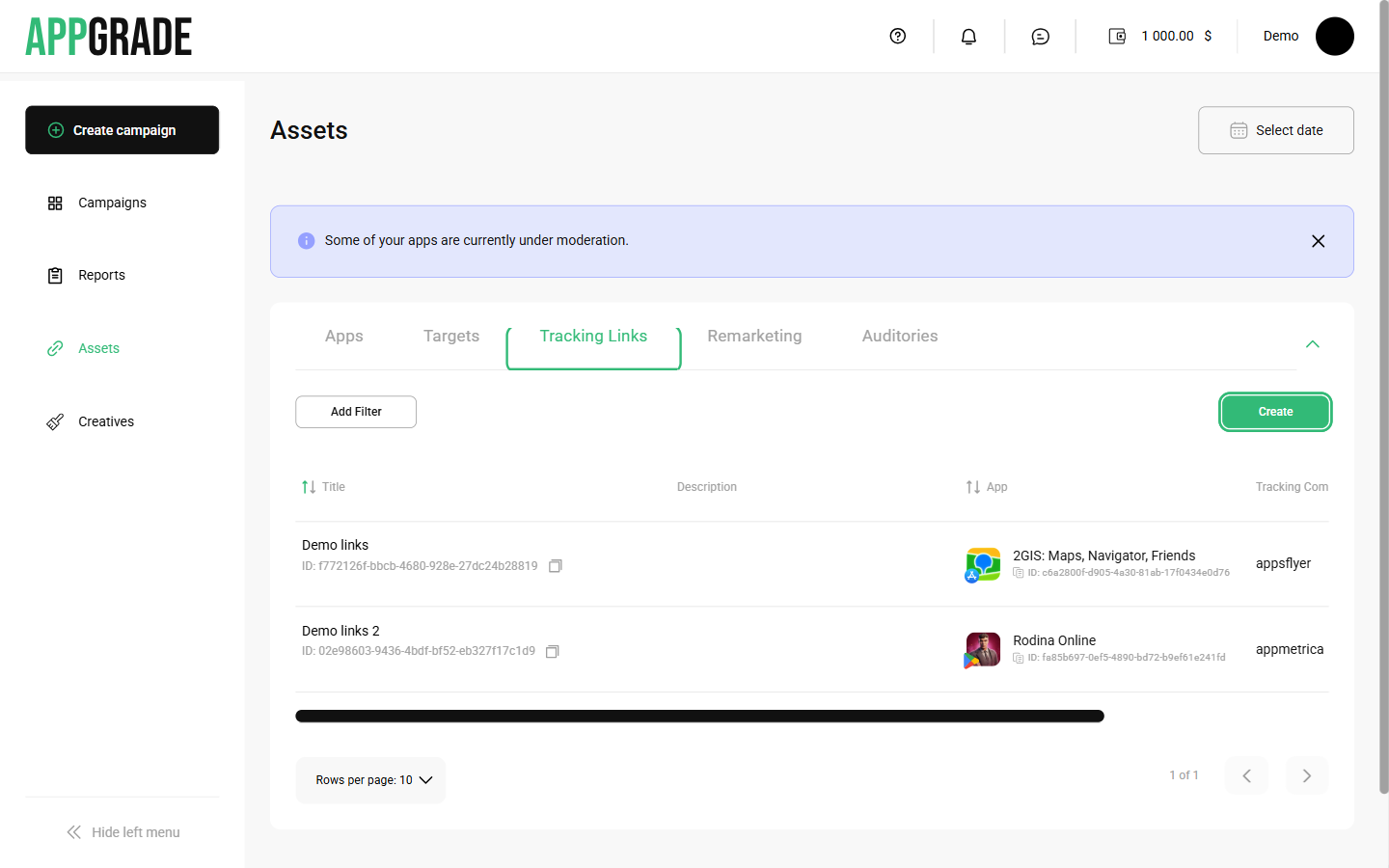
Sidebar → Assets → "Tracking Links" tab → "Create" button
-
In the sidebar, click Assets.
-
On the Assets page, switch to the Tracking Links tab.
-
Click Create.
-
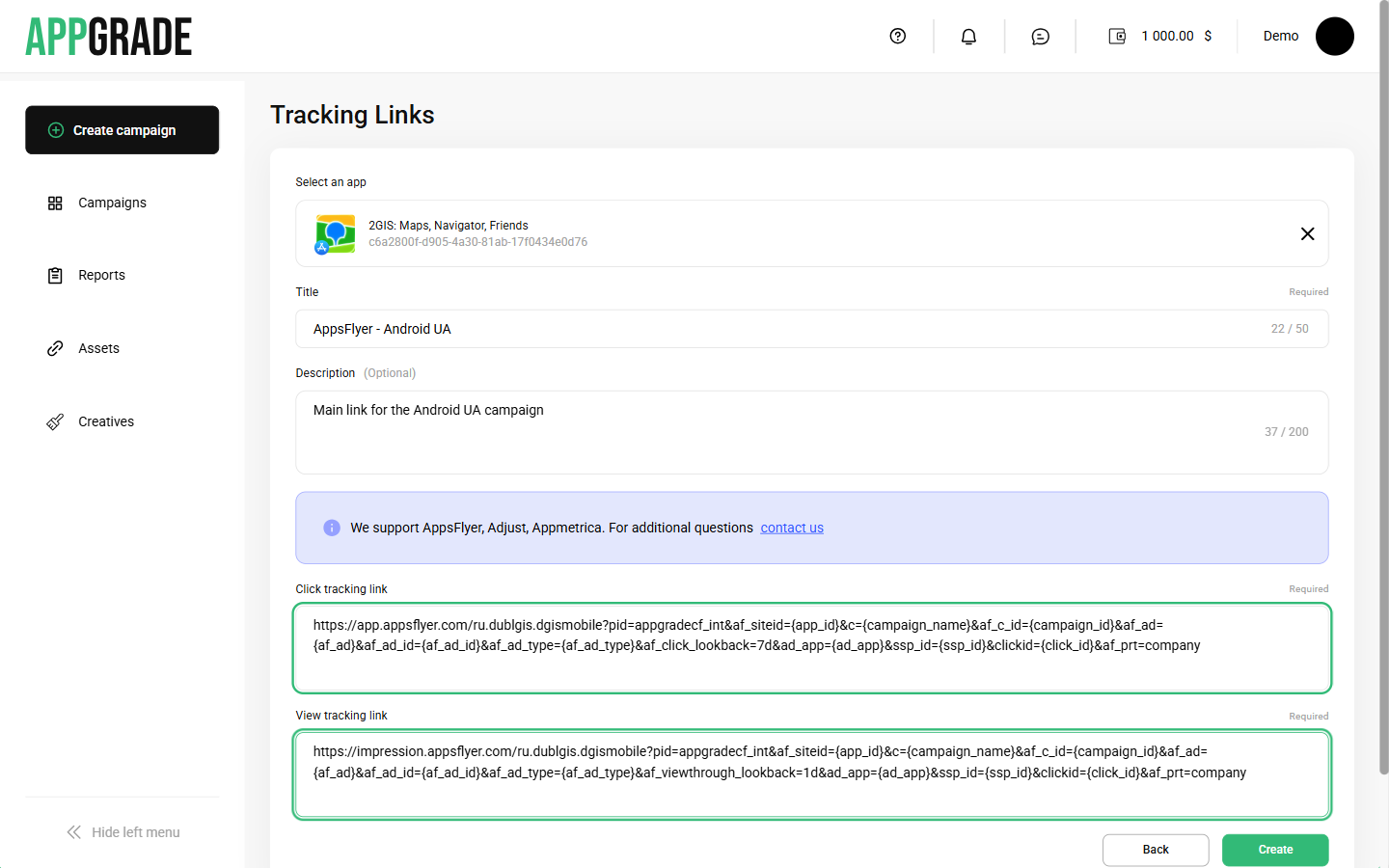
The creation form opens.
¶ Option 2: During campaign creation
Sidebar → Campaigns → "Create Campaign" → Step 2 → Tracking Link → "+ Create New"
-
During campaign creation, on Step 2, find the Tracking Link field.
Screenshot: the Tracking Link field in Step 2 of campaign creation.
-
In the selector, click + Create New.
-
After saving, the system automatically returns you to the campaign.
¶ Fill in the form
| Field | Description | Example |
|---|---|---|
| App | Select the app from the list (required) | MyApp (com.example.myapp) |
| Title | Link name, up to 50 characters (required) | AppsFlyer - Android UA |
| Description | Description, up to 200 characters (optional) | Main link for the Android UA campaign |
| Click URL | Click tracking link with macros (required) | See the template below |
| View URL | Impression tracking link with macros (required) | See the template below |
¶ What to paste into the Click URL field
https://app.appsflyer.com/APP_BUNDLE_ID?pid=appgradecf_int&af_siteid={app_id}&c={campaign_name}&af_c_id={campaign_id}&af_ad={af_ad}&af_ad_id={af_ad_id}&af_ad_type={af_ad_type}&af_click_lookback=7d&ad_app={ad_app}&ssp_id={ssp_id}&clickid={click_id}&af_prt=company
¶ What to paste into the View URL field
https://impression.appsflyer.com/APP_BUNDLE_ID?pid=appgradecf_int&af_siteid={app_id}&c={campaign_name}&af_c_id={campaign_id}&af_ad={af_ad}&af_ad_id={af_ad_id}&af_ad_type={af_ad_type}&af_viewthrough_lookback=1d&ad_app={ad_app}&ssp_id={ssp_id}&clickid={click_id}&af_prt=company
¶ Save and attach to a campaign
- Click Create.
- The link appears in the list on the Tracking Links tab under Assets.
- When creating or editing a campaign, select this link in the Tracking Link field on Step 2.
¶ Analytics recommendations
¶ What data to pass for better analysis
¶ Minimum set (basic attribution)
?pid=appgradecf_int&clickid={click_id}
Enough for:
- Attributing installs to the DSP
- Basic source-level statistics
¶ Recommended set (full analytics)
?pid=appgradecf_int&af_siteid={app_id}&c={campaign_name}&af_c_id={campaign_id}&af_ad={af_ad}&af_ad_id={af_ad_id}&af_ad_type={af_ad_type}&af_click_lookback=7d&ad_app={ad_app}&ssp_id={ssp_id}&clickid={click_id}&af_prt=company
Additionally provides:
- Drill-down by campaign, creative, and placement
- Grouping by SSP
- Filtering by creative type
¶ Where to view the data in AppsFlyer
| Report | Navigation | What it shows |
|---|---|---|
| Overview | Dashboard → Overview | Overall statistics by source |
| Activity | Dashboard → Activity | Installs and events over time |
| Partners (by source) | Dashboard → Media source drill-down | Data for a specific partner |
| Campaign drill-down | Click a media source → Campaign | Breakdown by campaign |
| Cohort | Analyze → Cohort | Retention and LTV by cohort |
| Protect360 | Protect → Fraud | Fraudulent installs |
| Raw Data Export | Reports → Raw data | Full data with af_sub1-5 |
¶ Tips for the richest analytics
- Always pass both name and ID:
c+af_c_id,af_ad+af_ad_id— names can change, IDs are stable. - af_siteid is critical: It lets you optimize by placement.
- af_channel: Helps you understand which SSP/exchange brings the best traffic.
- af_ad_type: Lets you compare banners vs. video vs. native, and so on.
- clickid is unique per click: Without a unique clickid, attribution is impossible.
¶ Troubleshooting
¶ Installs are not attributed
| Problem | Cause | Fix |
|---|---|---|
| No attribution at all | Partner not activated | Check that Activate Partner is set to ON |
| Installs show as organic | clickid is empty or not unique |
Make sure {click_id} is being substituted |
| No view-through attribution | Impression URL not configured | Create a View URL using the impression.appsflyer.com domain |
¶ Postbacks do not reach the DSP
| Problem | Fix |
|---|---|
| No postbacks at all | Check that the Install Postback is enabled in the partner settings |
| Event postbacks not arriving | Enable the required events in the In-App Events section |
¶ Data does not appear in reports
| Problem | Fix |
|---|---|
| No campaign breakdown | Add the c={campaign_name} parameter |
| No creative data | Add af_ad={creative_name} and af_ad_id={creative_id} |
| No placement data | Add af_siteid={site_id} |
¶ Verify that everything works
- Install test: Install the app after clicking → the postback should reach the DSP.
- In AppsFlyer: Go to Dashboard → Overview and confirm the install appears under your media source.
If you need help, contact the integration email provided by your AppGrade account manager.